 By Adrien Blanc
Habit Tracker Widgets: See Your Habits on Your Home Screen
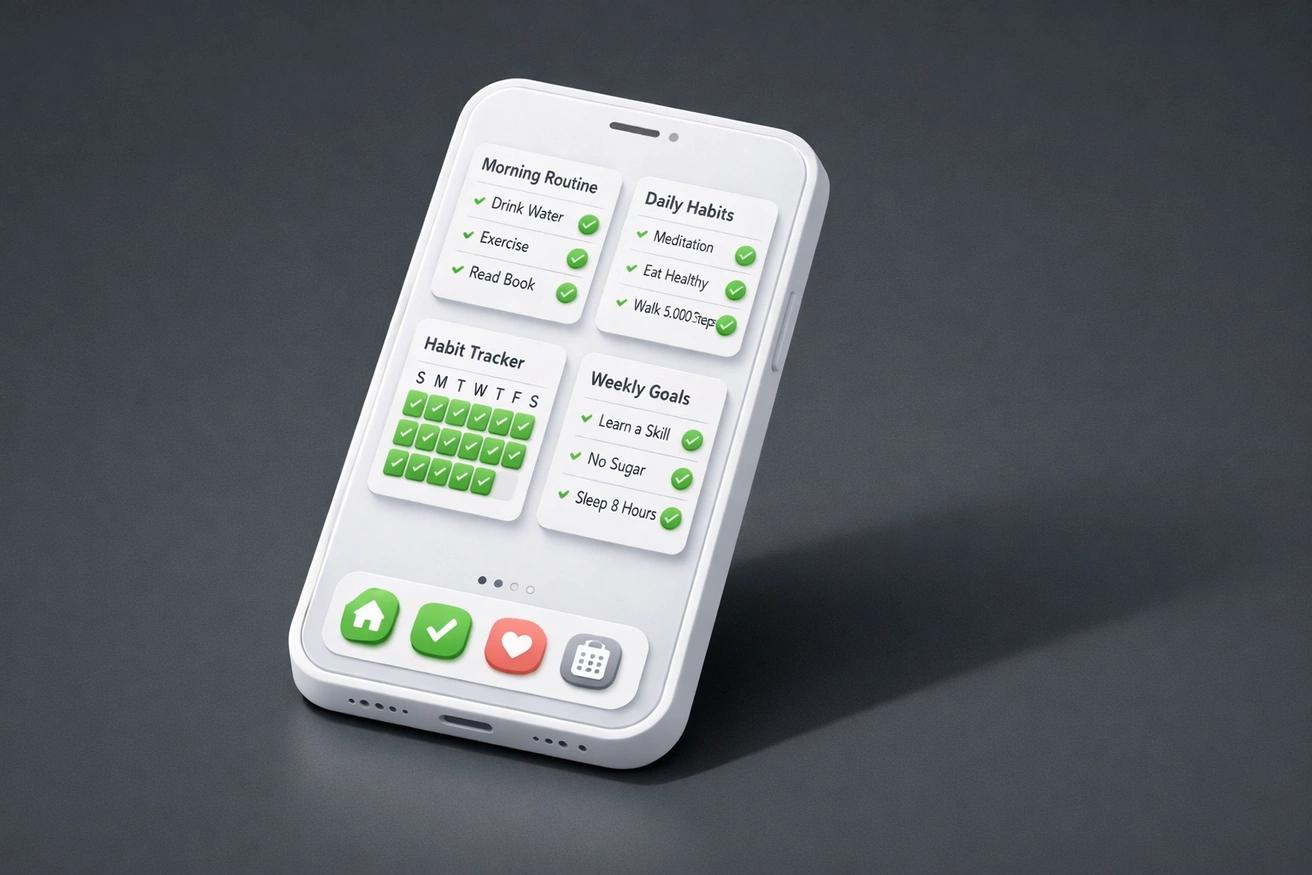
A habit tracker widget puts your daily habits directly on your phone's home screen, so you see your progress every time you pick up your device — no app to open, no extra taps. This matters more than you might think. A Duke University study found that roughly 45% of daily behaviors are performed in the same location, triggered by the same environmental cues, without conscious thought. A widget turns your phone's most-viewed surface into one of those cues. Instead of relying on memory or willpower, you get a passive visual reminder dozens of times per day.
The data backs this up: apps with interactive widget functionality see a 22% increase in daily usage compared to those using static displays alone. And a meta-analysis of over 19,000 participants published in Psychological Bulletin confirmed that people who monitor their progress are significantly more likely to reach their goals. Widgets make that monitoring effortless. If you're already using Habit Streak or considering it, setting up a home screen widget is one of the highest-impact things you can do in under 60 seconds.
22%
increase in daily app usage with interactive widgets vs. static displays
Set up a Habit Streak widget and track habits from your home screen
Download Free
Why Widgets Work: The Science of Visual Cues
Visual cues are one of the most reliable triggers for habitual behavior, and a home screen widget is a visual cue you encounter dozens of times per day. The habit loop — cue, routine, reward — depends on a consistent trigger. Without a cue, even the best intentions stay as intentions.
Neuroscience research published in Biological Psychiatry describes how habitual behavior is driven by the brain's sensorimotor loop, which connects the sensory cortex to the dorsolateral striatum. Once a visual cue becomes associated with a behavior, seeing that cue is enough to fire the response automatically. A widget displaying your unchecked habits creates exactly that kind of repeated association.
Here's why this matters for habit tracking specifically:
- Frequency of exposure. The average person checks their phone 96 times per day — once every 10 minutes. Each glance at a widget is a micro-reminder.
- Reduced friction. Tapping a checkbox on your home screen takes under a second. Opening an app, navigating to your habit list, and checking it off takes 5-10 seconds. That difference compounds across habits and days.
- Passive accountability. You don't need discipline to notice a widget. It's just there — creating a gentle sense of obligation every time you unlock your phone.
James Clear calls this "making the cue obvious" — the first law of behavior change from Atomic Habits. A widget is the digital equivalent of placing your running shoes by the door.
Setting Up Widgets on iOS
Adding a Habit Streak widget to your iPhone takes about 30 seconds and works on any device running iOS 14 or later. With iOS 18, widgets have become even more flexible — you can place them anywhere on the screen, interact with them directly, and customize their appearance.
Step-by-Step Setup
- Long-press on your home screen until the app icons start jiggling.
- Tap the "+" button in the top-left corner of the screen.
- Search for "Habit Streak" in the widget gallery.
- Browse the available widget sizes: small (single habit streak counter), medium (daily checklist), or large (full progress overview).
- Tap "Add Widget" and drag it to your preferred position.
- Tap the widget to configure which habits it displays.
iOS Lock Screen Widgets
Since iOS 16, you can also place widgets on your lock screen. This means you can see your habit status without even unlocking your phone. To add one:
- Long-press on your lock screen and tap "Customize."
- Select the Lock Screen option.
- Tap the widget area below the clock.
- Search for Habit Streak and add a lock screen widget.
Lock screen widgets are smaller and read-only, but they provide a constant reminder. Every time you check the time, you see your habits.
Setting Up Widgets on Android
Android has supported home screen widgets since its earliest versions, and the experience has only improved. Android widgets tend to be more customizable in size and layout than their iOS counterparts, giving you more flexibility in how you display your habits.
Step-by-Step Setup
- Long-press on an empty area of your home screen.
- Tap "Widgets" from the menu that appears.
- Scroll to or search for "Habit Streak."
- Long-press the widget style you want and drag it to your home screen.
- Resize the widget by dragging its edges if needed.
- Tap the widget to configure which habits appear.
Android-Specific Tips
- Resizable widgets. On Android, you can resize most widgets after placing them. Make it as large or compact as you need.
- Multiple widgets. Place different widgets on different home screen pages — one for morning habits, another for evening habits.
- Widget stacks. Some Android launchers support widget stacking, letting you swipe between multiple widgets in the same space.
Best Widget Layouts for Habit Tracking
The most effective widget layout depends on how many habits you track and when you track them. There's no single right answer, but certain configurations consistently work well based on how people actually use their phones.
Layout 1: The Single Focus
Best for people tracking 1-3 core habits.
- One medium widget at the top of your main home screen showing today's checklist.
- Everything you need is visible at a glance. No scrolling, no navigating.
Layout 2: The Morning-Evening Split
Best for people with distinct morning and evening routines.
- Page 1: A medium widget with morning habits (meditate, exercise, no phone).
- Page 2: A medium widget with evening habits (journal, read, screen off).
- Each page acts as a contextual dashboard for that part of your day.
Layout 3: The Streak Dashboard
Best for people motivated by streak counts.
- Multiple small widgets, each showing the streak counter for one key habit.
- Arrange them in a row across your home screen. You see a lineup of streak numbers every time you glance at your phone.
- This layout is especially motivating once your streaks reach double digits.
Layout 4: The Progress Ring
Best for data-oriented trackers.
- One large widget showing your overall daily completion percentage and progress ring.
- This provides a bird's-eye view: "I'm 60% done for today" is a powerful motivator to finish the rest.
The key principle across all layouts: the widget should show you something actionable. If it just looks pretty without prompting a behavior, it's decoration, not a tool.
How Widgets Improve Habit Completion Rates
People who see their habit data consistently complete more of their tracked behaviors. A study published in Behavioral Science & Policy found that people who see their streaks complete 47% more tasks than those relying on memory alone. Widgets are the most frictionless way to keep that data in front of you.
Here's how widgets translate to better consistency:
- The "incomplete" effect. Seeing three out of five habits checked off creates what psychologists call the Zeigarnik effect — an innate drive to complete unfinished tasks. A half-filled checklist widget nags at you in a productive way.
- Micro-moments of action. You're waiting for coffee. You glance at your phone. The widget shows "Drink water" unchecked. You grab your water bottle. That interaction took three seconds and would never have happened if the habit was buried inside an app.
- Streak protection instinct. When your streak counter is visible on your home screen, the loss aversion effect kicks in. Kahneman and Tversky's research showed people feel losses roughly twice as strongly as equivalent gains. A visible 45-day streak becomes something you actively protect.
Widgets also help combat one of the biggest reasons people stop tracking: app fatigue. Less than 5% of users still use an app 30 days after installing it. Widgets reduce the need to open the app at all, keeping your habit system alive even when the novelty of a new app has worn off. You're not "using an app" — you're just tapping a checkbox on your home screen.
Troubleshooting Common Widget Issues
If your widget isn't updating, loading, or appearing correctly, the fix is usually simple. Most widget problems come from three sources: background app refresh settings, operating system restrictions, and storage.
Widget Not Updating
- iOS: Go to Settings > General > Background App Refresh and make sure Habit Streak is enabled. iOS aggressively manages background activity to save battery — your widget needs permission to refresh.
- Android: Check that Habit Streak is not being "optimized" by your battery settings. Go to Settings > Battery > Battery Optimization and exclude Habit Streak.
Widget Not Appearing in the Gallery
- Make sure the app is up to date. Widget types are sometimes added in new versions.
- Restart your phone. This forces the system to re-index available widgets.
- On iOS, if you recently installed the app, wait a minute before searching the widget gallery — indexing can take a moment.
Widget Showing Wrong Data
- Tap the widget to open the app, then return to the home screen. This forces a refresh.
- If you've recently changed your habit list, you may need to reconfigure the widget to display the updated habits.
Getting the Most Out of Your Widget Setup
The best widget setup is one you actually look at. Here are a few principles that keep widgets effective over weeks and months, not just the first few days.
Refresh your layout periodically. Research on visual habituation shows that the brain can become desensitized to static visual cues over time. If your widget has been in the same spot for months and you've stopped noticing it, move it. Change the widget size or try a different style. Small environmental refreshes every 4-6 weeks prevent your brain from filtering it out.
Combine widgets with reminders. Widgets are passive cues. Reminders are active prompts. Used together, they cover both modes of attention: the times you're looking at your phone and the times you're not. Set a reminder for habits that have a specific time window, and let the widget handle everything else.
Don't overcrowd your home screen. If every inch of your screen is widgets and icons, nothing stands out. Give your habit widget breathing room. A single, well-placed widget is more effective than three crammed into a cluttered screen.
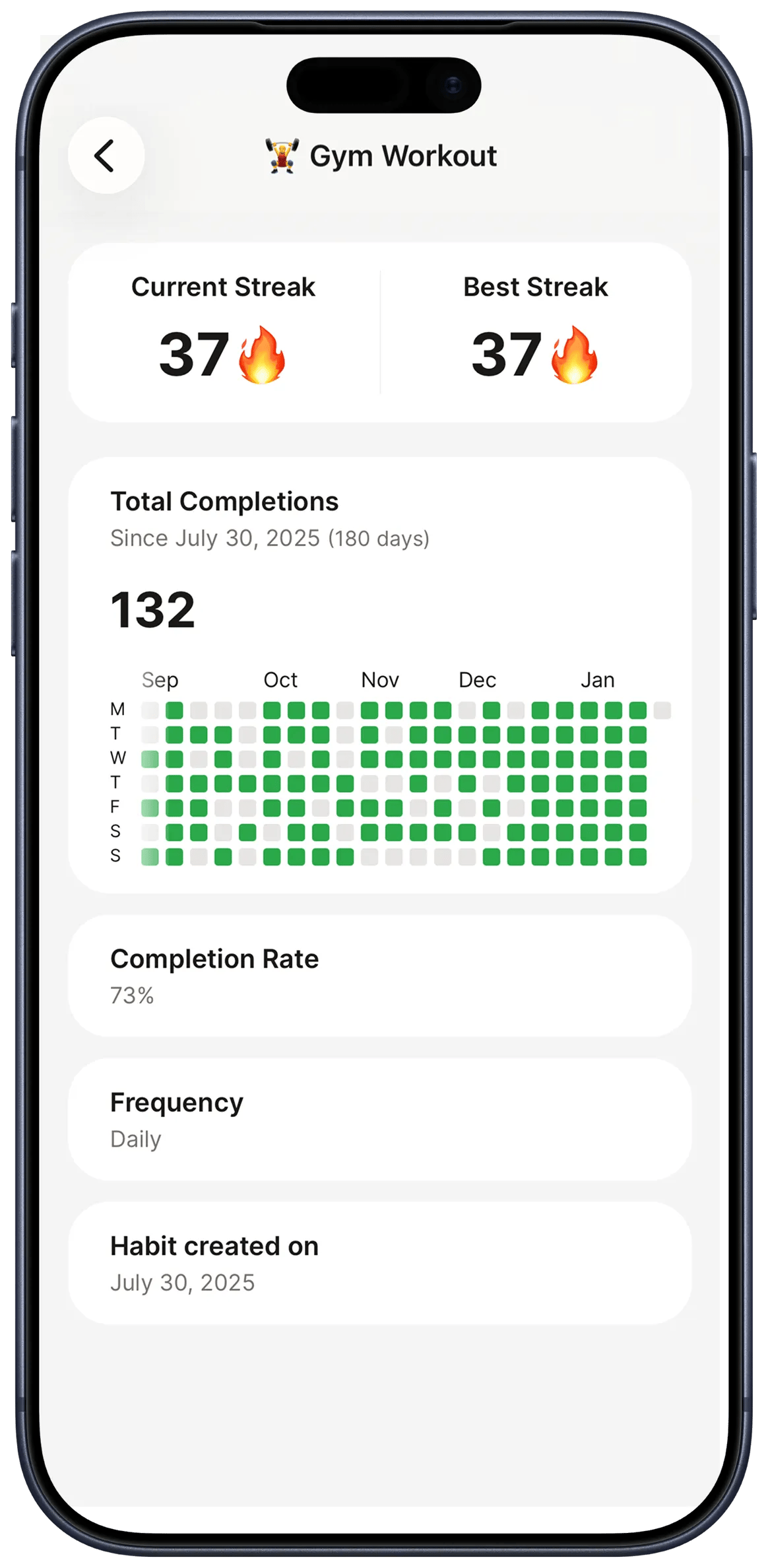
Track your completion rate trend. After setting up widgets, pay attention to your habit completion rates over the following two weeks. If you see an uptick in consistency, the widget is working. If not, experiment with placement, size, or which habits the widget shows.
Add a home screen widget and see your habits at a glance
Download FreeFrequently Asked Questions
Do habit tracker widgets drain my phone's battery?▼
No. Modern widgets on both iOS and Android are designed to be extremely lightweight. They update periodically in the background using minimal resources. You won't notice any meaningful impact on battery life under normal use.
Can I complete habits directly from the widget without opening the app?▼
Yes. Habit Streak's interactive widgets let you tap a checkbox directly on your home screen to mark a habit as done. On iOS 17 and later, interactive widgets are fully supported. On Android, this functionality has been available for years.
How many widgets can I add to my home screen?▼
There's no hard limit from Habit Streak's side. You can add as many widgets as your home screen supports. However, for best results, use 1-3 widgets maximum. Too many widgets create visual clutter that defeats the purpose of at-a-glance tracking.
Will my widget work if I use the free version of Habit Streak?▼
Yes. Home screen widgets are included in the free version of Habit Streak. You don't need a premium subscription to use widgets, reminders, or basic streak tracking.
Why is my widget showing a blank screen or not loading?▼
This usually happens when Background App Refresh is disabled or when your phone's battery saver mode is active. Go to your phone's settings and ensure Habit Streak has permission to refresh in the background. If that doesn't help, remove the widget and add it again.
- 1.Creatures of Habit: The Neuroscience of Habit and Purposeful Behaviorpmc.ncbi.nlm.nih.gov
- 2.iOS Widget Interactivity in 2026: Designing for the Post-App Eradev.to
- 3.Does monitoring goal progress promote goal attainment? A meta-analysis of the experimental evidencepubmed.ncbi.nlm.nih.gov
- 4.96 times per dayfalkonsms.com
- 5.study published in _Behavioral Science & Policy_medium.com
- 6.loss aversion effectscience.org
- 7.15+ Mobile App Engagement Benchmarks by Industry 2025uxcam.com
- 8.become desensitized to static visual cues over timefastercapital.com